
Paper business cards run out, get lost in wallets and go out of date the day your number changes. A free digital business card fixes that: it is a small web page with your details that people open from a link or a QR code and save to their contacts in one tap. This guide shows how to make one on your phone, step by step, in a few minutes.
What a digital business card is
A digital business card is a one-page website about you. It shows your name, what you do and your photo, with buttons that do something useful: call you, open a WhatsApp chat, write you an email or show your address on a map. A Save contact button adds all of it to the other person's phone at once.
The person you share it with does not need an app. The card opens in the browser of any phone or computer, from a link you send or a QR code they scan. You can also put the same link in your social media profiles and your email signature.
Compared with a paper card, three things change:
- It never runs out. You can share it a thousand times in the same week.
- It stays up to date. Change your number or your photo, and everyone who opens the link sees the new version.
- It does more than list details. One tap starts the call or the chat, so fewer people give up before they reach you.
What you need before you start
You can make the whole card on your phone. Have these ready:
- An email address you check. You confirm it once before the card goes public.
- A clear photo of you, or your logo (JPG, PNG or WebP). A face makes people trust the card, so use a recent photo with good light.
- The ways people should reach you: the phone number you answer, your WhatsApp number, your email, and your address if clients visit you.
- One short line about what you do, for example "Wedding photographer" or "Home cook, catering for events".
Not sure what to write? Our guide on what to put on a digital business card has examples for twelve kinds of work.
Step 1: your name and email
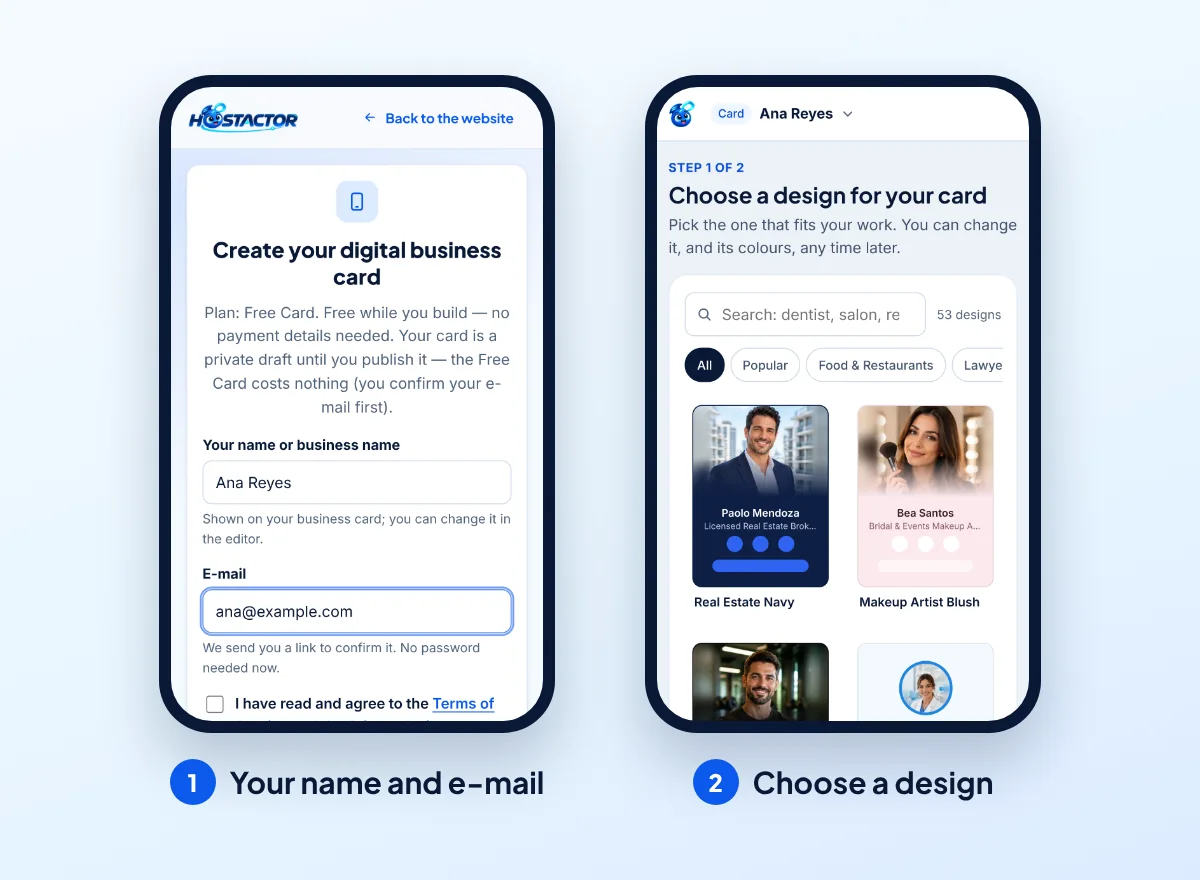
Open the digital business card page and tap Create your free card. A short form asks for two things:
- Your name or business name, as it should appear on the card. You can change it later in the editor.
- Your email address. You get a link to confirm it. No password is needed now.
Tick the box to accept the terms and tap Create my card. No payment details are asked for. Your card is a private draft until you publish it, so nobody sees it while you work on it.
Step 2: choose a design
The editor opens on Choose a design for your card. There are 53 designs, each shown with a sample photo, so you can see how a finished card looks before you pick one. Use the search box ("dentist", "salon", "real estate") or the filters to find designs made for your kind of work.
Do not spend long on this step. You can change the design, and its colors, any time later without losing what you typed.
Step 3: add your details
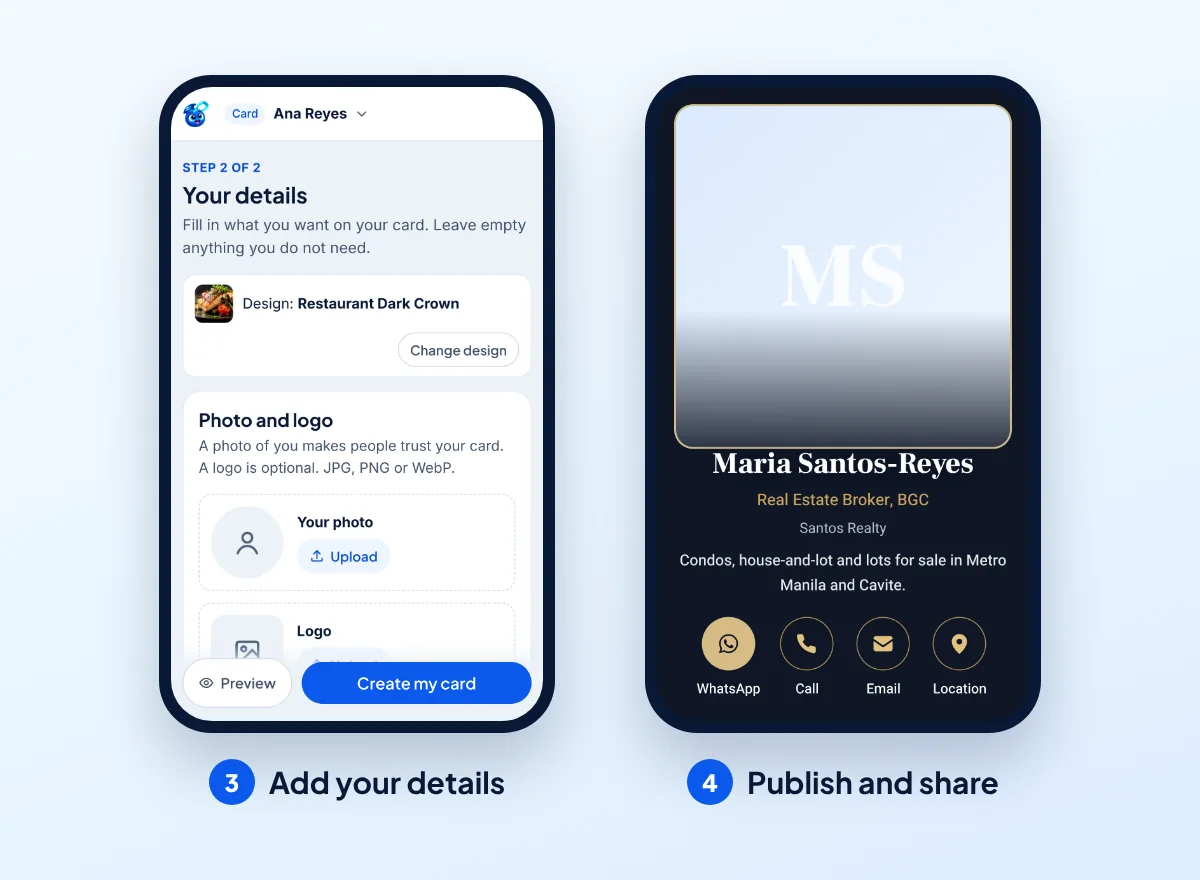
The second step, Your details, is one simple form. Fill in what you want on the card and leave the rest empty:
- Photo and logo. Upload your photo; a logo is optional.
- About you. The name on the card, your job title or profession, your business name and a short description of one or two sentences.
- How people reach you. Your phone number, WhatsApp number, email, address and website. If your WhatsApp is on the same number, switch on Same number as my phone. For the address you can type a street address or paste a Google Maps link; on the card it opens directions.
- Social media. Type @yourname or paste a full link. More networks can be added after you create the card.
The card needs at least one way to reach you: a phone number, WhatsApp or email. Tap Preview to see the card as people will see it, then tap Create my card.
Step 4: publish and share
After you create the card, the editor opens on its design and colors, with everything you entered. When you are happy with it, tap Publish and choose the Free Card. It costs nothing; if you have not confirmed your email yet, you do that first.
Your card gets an address of its own, such as yourname.hostactor.site. Now share it:
- Send the link on WhatsApp, Messenger or email after a call or a meeting.
- Show the QR code on your phone when you meet someone. They scan it with the camera, open your card and tap Save contact.
- Print the QR code on flyers, packaging, a sticker at your counter or the back of a paper card you still hand out.
- Add the link to your social media profiles and your email signature.
When something changes, edit the card and publish again. The link and the QR code stay the same, so everything you already shared keeps working.
Free or paid: what changes
For most people starting out, the Free Card is enough. The paid plans add things that matter once the card brings you work:
| Plan | What it adds |
|---|---|
| Free Card | One card with your details, one-tap buttons, Save contact and a QR code. It shows a small "Made with Hostactor" line. |
| Professional | No Hostactor line, a photo gallery and basic statistics. US$0.99/month, billed US$11.88 a year. |
| Business Card+ | Your card on your own domain, a form that collects leads, and more detailed statistics. US$1.69/month, billed US$20.28 a year. |
You can start free and upgrade later. The card and its link stay exactly the same.
Frequently asked questions
Is the free digital business card really free?
Yes. The Free Card costs nothing and has no time limit. It includes one card with your details, one-tap buttons, Save contact and a QR code, and shows a small "Made with Hostactor" line.
Does the other person need an app to open my card?
No. The card is a web page, so it opens in the browser of any phone or computer, from your link or your QR code.
Can I change my card after I share it?
Yes. Edit it and publish again. The link and the QR code do not change, so people who saved or scanned it see the new version.
Can I use my own domain name?
Yes, with the Business Card+ plan. The free and Professional cards use an address such as yourname.hostactor.site.
Make your card now
Create a free digital business card on your phone and share it with a link or a QR code.